
Just like Johnny Mercer, Paul is always keen to be held to account in his role as Eastleigh’s MP, so I must start this annual review with an apology for skipping his 2021/22 review. While I’m sure we’d all rather forget Truss-Kwarteng and their I Can’t Believe It’s Not A Budget, I still hope to fill in the gaps but there’s an election coming so it only seems fair to focus on Paul’s more recent work.
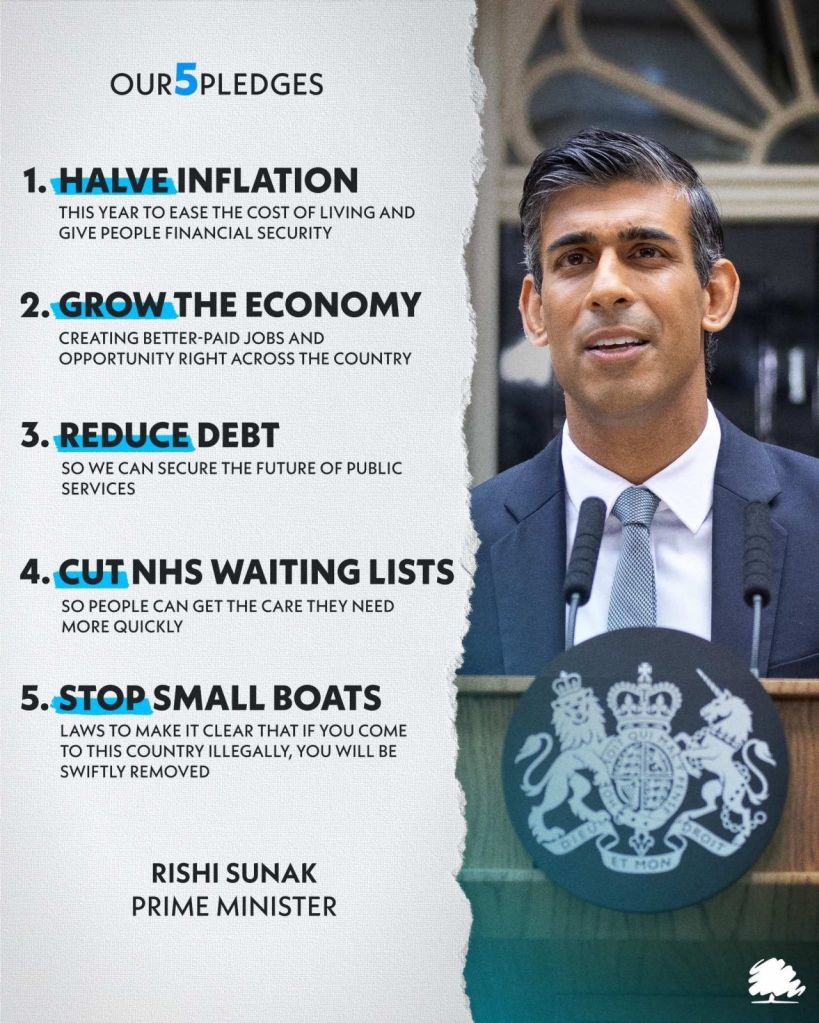
Paul’s most important contribution to politics is his line on the Tory whip’s spreadsheet and he has once again maintained his impeccable track record of voting exactly how he was told to. Even so, with Rishi “integrity, professionalism and accountability” Sunak in charge, toeing the party line was going to be easier than ever for Paul “integrity and honesty” Holmes this year.
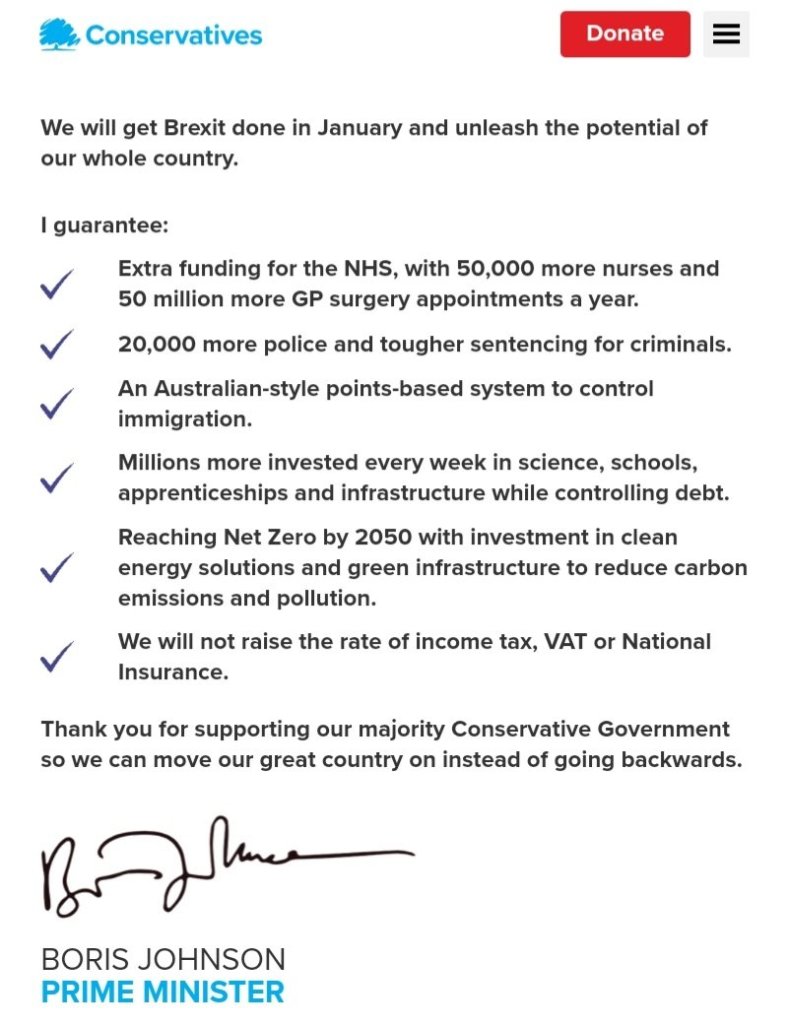
1. Halve Inflation: understandably reluctant to take any responsibility for rising inflation (wars, climate change, trade barriers, special financial operations, etc.) but only too happy to take credit for falling inflation. Food inflation is still going to make cooking a meal for 31.17p pretty tricky though.
“To then say to them, actually we’re going to bring down inflation when they blame us for inflation rising in the first place, that makes it really difficult.”
Paul Holmes, PoliticsHome
Unfortunately Paul only blames Liz Truss for the dire position the party finds itself in, perhaps forgetting the country is also in a dire position thanks to him and his party putting Liz Truss in power in the first place. Party first as always.
2. Grow the Economy: we’re currently heading for a recession but with Paul’s plan to save our high street, and Sunak’s world-beating idea to use legislation to redefine reality, I’m sure we’ll be fine.
Btw. has anyone discovered what Paul’s plan actually is? Replacing the high street with vans maybe?
3. Reduce Debt: Paul is always keen to distract attention towards Eastleigh Councils debt, although strangely without any context whatsoever. Despite all Paul’s bluster, the Chartered Institute of Public Finance and Accountancy review of Eastleigh Borough Council’s debt found,
“The council appears to understand the challenges its indebtedness position creates and has clear strategies and mitigations for managing them. EBC’s investment portfolio has a clear strategic purpose.”
CIPFA report
Perhaps Jeremy Hunt could get some tips from Eastleigh Council on prudent financial management before spaffing any uncosted tax giveaways on Conservative donors in a desperate attempt to buy the next election.
4. Cut NHS Waiting Lists: well I think we can all agree that the 40 new hospitals and the government’s skillful handling of NHS strikes has made a huge difference to waiting lists.
5. Stop Small Boats: this is Paul’s chance to shine, having been Priti Patel’s PPS at the start of the government’s wildly successful campaign to stop anyone claiming asylum in the UK. Unfortunately it actually turns out to be the low point of his Westminster career.
On the anniversary of the 2019 general election, in the Safety of Rwanda (Asylum and Immigration) Bill debate where MPs were discussing legislation that seeks to alter reality in a desperate attempt to continue the Tory government’s ridiculous obsesion with deporting money to Rwanda, Paul interrupted the shadow home secretary to ask what Labour’s plan was.
Ian Dunt was impressed by this line of questioning…
“Cooper is asked what Labour’s plan is. Starmer was asked the same thing on Radio 4 this morning, persistently. There are many things to criticise Labour for, but this isn’t one of them and indeed the question betrays one of the intellectual failings of Westminster.”
Ian Dunt, Twitter/X, 12th December 2023
It gets worse. Having dutifully delivered the line he was very likely given, he seemed to get carried away and finished by claiming “everything that [the shadow home secretary] says she would do, this government is already doing” which is very clearly false.
There may be some unobservant back benchers who could have missed the obvious differences between Labour’s plans and the inhumane and ineffective pantomime that the Conservative government persists with but Paul was Patel’s PPS when she was home secretary, so I am quite sure he knows better.
As far as I can tell Paul has not apologised or corrected the record, so it’s difficult not to conclude that Paul is a liar.
King’s Speech
“It is a privilege to speak in this debate on the King’s Speech, because I genuinely believe that crime and sentencing is one of this Government’s key successes in the past 13 years.”
Paul Holmes, Violence Reduction, Policing and Criminal Justice debate
Wow, that’s some success.
According to Paul the government is reducing crime and recruiting more police officers. For some reason he doesn’t mention fraud or who cut the number of police officers in the first place. The 2019 Boris Johnson intake of New Conservative MPs is going to cast a long shadow over British politics.
For the gory details of the government’s “success”, I would definitely recommend reading the Secret Barrister’s, Stories of the Law and How It’s Broken.
Or for a tldr summary, have a look at Tanya-Jayne’s ex-Twitter thread instead.
Campaigns
One Horton Heath: Paul hasn’t given up on his failed attempts to stop the One Horton Heath project, finishing the year with another of his signature contributions to Prime Minister’s Questions complaining about Eastleigh Council’s house building.
“Eastleigh Borough Council recently refinanced its failed One Heaton Heath housing project to the tune of £148 million, with no houses built and interest payments of £386,000 per month.”
Paul Holmes, Prime Minister’s Questions, December 2023
At least he got the meeting he asked for this time, unlike the infrastructure necessary to build many more homes promised by Boris Johnson in response to Paul’s first Prime Minister’s Question. Boris Johnson is a liar though so that’s not too surprising.
Oddly Paul doesn’t seem to have anything to say about the nearby Uplands Development. It’s a stone’s throw from One Horton Heath and is also a failure by Paul’s definition, with £ millions spent on infrastructure (a road and a school) but no houses yet. Perhaps I just missed Paul’s campaign on this one, or maybe there’s some reason he doesn’t complain about it. 🤔
M27 resurfacing: if I had a VIP PPE contract for every time Paul announced the M27 was about to be resurfaced, I would be sitting on a yacht by now!
It was meant to be done at the same time as the smart motorway work, which would have obviously made far too much sense. The lying Prime Minister (Johnson, not Sunak) also announced the work was meant to have started already but here’s Paul delivering the same news in February, and again just recently in December.
Will the work start while Paul is still Eastleigh’s MP? He’s running out of time.
Southampton Airport expansion: Paul got a spectacular photo opportunity opening the airport extension this year. In a climate crisis. Excellent work.
To be fair to Paul, his contribution to the runway extension was likely very similar to his contribution to lowering inflation, or the M27 resurfacing for that matter.
Hamble Airfield Quarry: Paul’s latest campaign is absolutely perfect for any MP:— who would want a gravel pit next to their house? Or next to a school! Paul has firmly attached himself to local opposition to the quarry and even introduced his second (doomed) 10 minute rule bill in parliament!
I would agree that planning rules are inadequate for any applications with large health and environmental implications, as demonstrated by the Southampton airport extension. Paul’s Planning (Quarries) Bill isn’t going to fix that though.
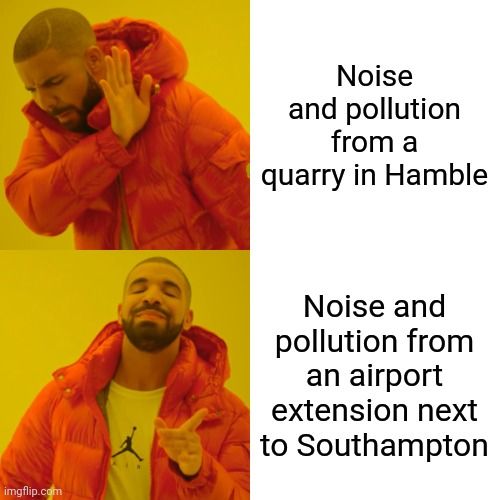
Even if the government supported Paul’s Planning (Quarries) Bill (lol), there’s unlikely to be time left for it to progress, so it’ll go the way of most 10 minute rule bills. My guess is that the quarry will eventually go ahead but that Paul will get through the next general election before the Conservative Hampshire County Council make a decision.
Sewage: just kidding, this is obviously not something Paul has waded in to!
Hedge End station accessibility: more talk and photo ops but no progress. I’m sure he’ll continue the fight to jump the station accessibility funding queue if we elect him to the new Hamble Valley constituency. (Spoiler alert for the missing annual review: this isn’t his first station accessibility campaign!)
Constituents
Paul’s MO on social media has long been insulting and blocking constituents to shut down debate, and this year was no different. Hilariously, and with no sign of any self-awareness, he recently complained about being blocked by someone else! 🤣
“Sorry Christine I’m blocked by Liz as she hates debate and doesn’t like standing up against her party and their disastrous local record.”
Paul Holmes, Twitter/X, 12th December 2023
Liz Jarvis is the Lib Dem parliamentary candidate for Eastleigh and while I would personally rather politicians didn’t block people, I can understand why someone would choose to block Paul based on his fairly unpleasant use of social media. Paul will be campaigning for the new Hamble Valley constituency in the upcoming general election, not Eastleigh, so I’m not entirely sure why he appears to be so threatened by her. Perhaps because she does actually stand up against her local party, disagreeing with them on the airport extension and Solent freeport …according to Paul Holmes. 🤦♂️
When I asked what people wanted to know in an annual review, the most common requests were for attendance in parliament, votes, number of local surgeries, number of cases handled etc. Unfortunately MPs are not obliged to publish any information at all as far as I can tell but there are some clues.
Paul has a government job (currently PPS to Michael Gove after stepping down as Conservative Vice Chairman earlier in the year) so he has more incentive than a normal backbench MP to attend parliament and vote how he’s told to and, as his parliamentary page shows, Paul does turn up, vote, and deliver the government’s lines to take.
We cannot know Paul’s exact attendance record but we do know that it was much better than other MPs, like Nadine Dorries. We’re used to Paul arguing with constituents on social media but this year he made the news for a social media spat with the former culture secretary Nadine Dorries.
“Unlike you Nadine I work my seat, I work hard for them, and haven’t been AWOL for months and then pretend it has nothing to do with me.”
Paul Holmes, Twitter/X, 21st October 2023
More interestingly it led to the claim that Paul was gifted his Eastleigh seat, which rings true in the context of questions of integrity and fairness conducting his selection for the new Hamble Valley seat.
“He won it because he was as given it after mims stepped down for a safer one. I was literally in the room for the conversations”
Ems Barr, Twitter/X, 22nd October 2023
There are no publicly verifiable records of how many constituents contact Paul, or what the end result is, but Pauĺ claims to work very hard and while not everyone is happy, he continues to get generally favourable reviews.
“You are just deluded. 20000 cases all completed on time and a strong team. As I said before I can’t wait until I no longer represent you. Such an unpleasant man.”
Paul Holmes, Twitter/X, 29th December 2023
It’s not clear whether that’s 20,000 cases this year or since he was elected, and from a previous review around 5% are about pot holes, but Paul’s strong team includes the very pleasant Daniel Sydenham.
Paul suspended his senior parliamentary assistant to conduct an investigation after reports surfaced that Daniel featured in a Halloween video dressed as Jimmy Savile. That’s in stark contrast to Paul’s usual preference for keeping the accused in their job while waiting for a completed report before expressing any views. Maybe that’s just his approach for Conservative leaders though. Either way, I haven’t seen any outcome of the investigation and Daniel’s LinkedIn profile still shows him as Paul’s senior assistant.
If you have a problem… if no one else can help… and if you can find him at his out of town Conservative club office, or one of his sporadic street surgeries… maybe you can ask for Paul’s help. Paul’s next job could be in Citizens Advice, he just doesn’t know it yet.
Conclusion
I don’t think there were any big surprises this year. We’ve got to know Paul pretty well since 2019 and he’s fairly typical of that New Conservative/Boris Johnson intake of MPs. There’s very likely to be a general election in 2024, so look out for any more inadvertent terminological inexactitudes in the upcoming campaign.
Biggest achievement: securing himself the slightly safer Hamble Valley seat for the next election.
Biggest disappointment: lying in parliament.
And finally, how does Paul feel about how everything is going?
“More and more lately, I have utter despair at coming into work and this party”
Paul Holmes, via WhatsApp
He has my sympathy,— if only there was some way we could help. (Register to vote now, and then apply for a postal vote, and then vote tactically!!)
As with Paul’s 2020 and 2021 reviews, these are just my personal observations. You may have other examples of times Paul has done well, or things he could do to improve. If you have, please leave a comment below!


 Notes from a small field